Twój serwer plików na ZFS, prowadzony z przeglądarki.
Dyski, udziały, kopie zapasowe, maszyny wirtualne i bezpieczny dostęp
zdalny w jednym, prostym panelu po polsku, który działa także na
telefonie. Pod spodem jest FreeBSD i ZFS: system plików, który pilnuje
każdego bajtu Twoich danych.
tankONLINE
mirror-0 · ada1 ada2
scrub repaired 0B · 0 errors
Pulpit: obciążenie serwera i stan pul na jednym ekranie
InfoGROW NAS w 90 sekund
Dlaczego InfoGROW NAS
Dane bezpieczne z założenia
ZFS wykrywa i naprawia uszkodzone dane, robi błyskawiczne snapshoty i
pozwala cofnąć zmiany, np. po ataku ransomware. Panel sam pilnuje stanu
dysków i pul. Gdy coś jest nie tak, wysyła alert e-mailem.
Prosty, ale nie zabawkowy
Każda funkcja ma krótkie objaśnienie w języku użytkownika, a nie
administratora. Operacje ryzykowne wymagają potwierdzenia. Zmiany sieci
i zapory, które mogłyby odciąć dostęp, cofają się same po 2 minutach,
jeśli ich nie potwierdzisz.
Bezpieczny od pierwszego uruchomienia
Panel działa tylko po HTTPS i wymusza zmianę domyślnego hasła.
Oferuje logowanie dwuskładnikowe, blokadę zgadywania haseł i dziennik
operacji administracyjnych. Konta do plików (SMB, FTP) nie mają dostępu
do panelu.
Po polsku i po angielsku, na komputerze i telefonie
Język przełączasz jednym kliknięciem. Panel zapamiętuje go dla
każdego konta.
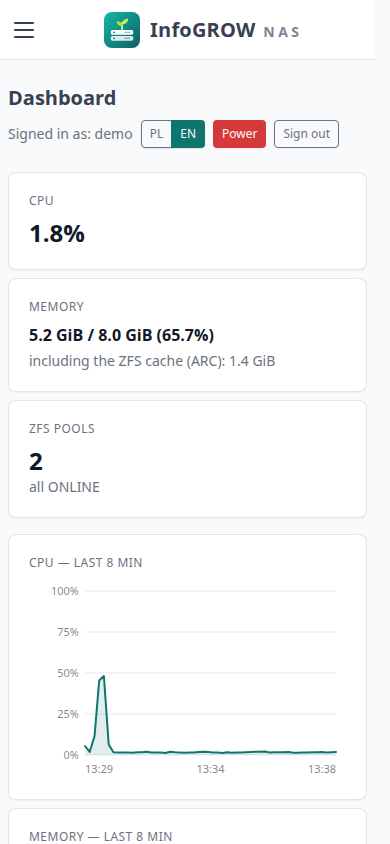
Panel na telefonie
Funkcje
Magazyn danych na ZFS
Pule w układzie mirror, RAID-Z1, RAID-Z2 albo stripe zakładasz z
wolnych dysków; dysk systemowy i dyski z danymi są chronione przed
przypadkowym użyciem. Panel daje też:
datasety z kompresją, limitami i snapshotami;
harmonogram snapshotów z automatycznym usuwaniem najstarszych;
regularny scrub i testy S.M.A.R.T. dysków.
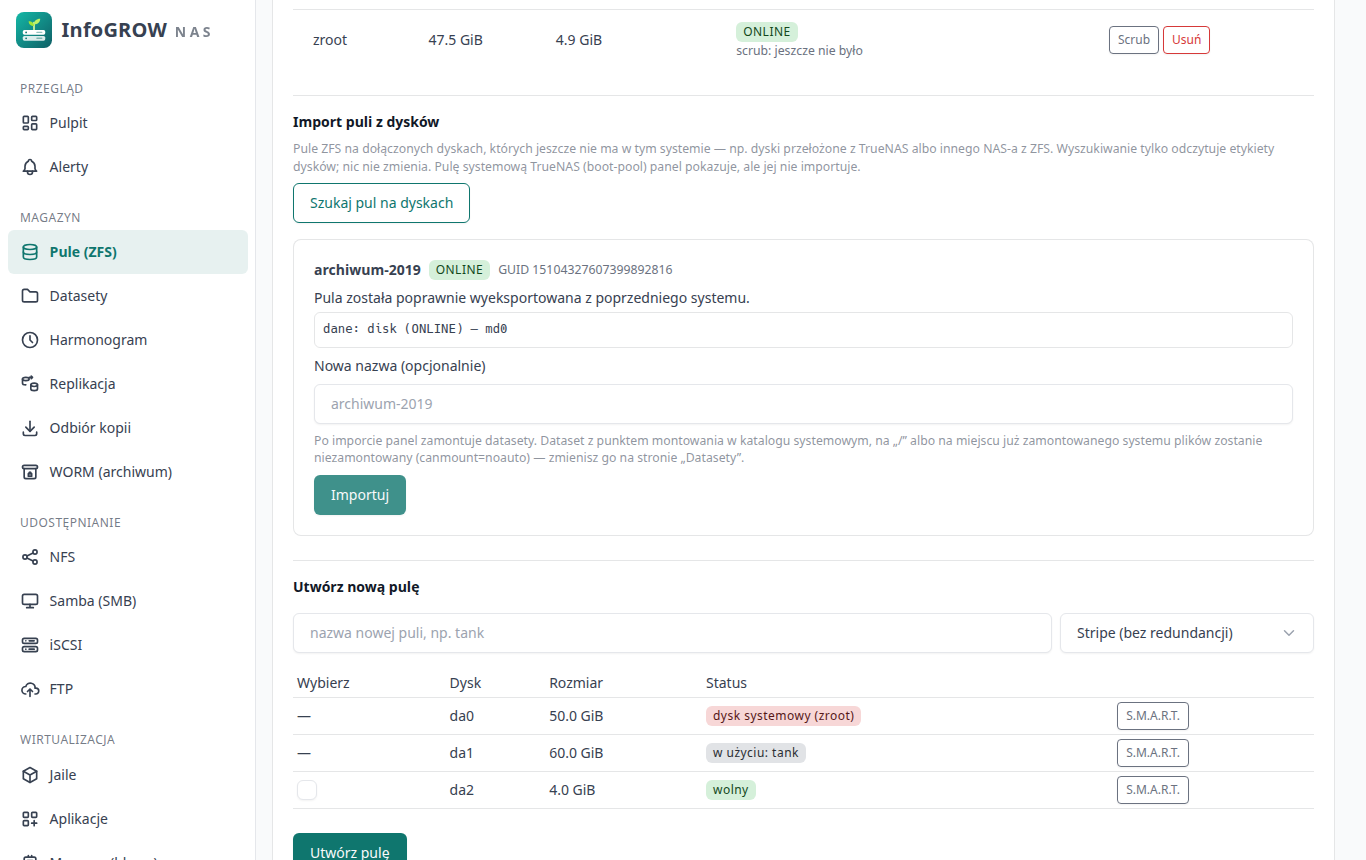
Pule ZFS i dyski: od razu widać, który dysk jest wolny
Przesiadka z TrueNAS bez kopiowania danych
Przełóż dyski, kliknij Szukaj pul na dyskach i
zaimportuj pulę. Panel pokazuje:
jak pula jest zbudowana;
w jakim jest stanie;
czy była poprawnie wyeksportowana;
czy grozi kolizja nazw.
Dataset, który mógłby przykryć pliki systemu, panel zostawia
niezamontowany i mówi dlaczego.
Import puli z dysków przeniesionych z innego serwera
Udostępnianie plików
Samba (SMB) dla Windows, macOS i Linuksa:
użytkownicy, grupy i udziały, także w domenie Active Directory.
NFS dla Linuksa i serwerów, iSCSI
z CHAP dla dysków sieciowych (np. rejestratorów kamer).
FTP z kontami zamkniętymi w swoich katalogach.
Samba: ustawienia serwera, użytkownicy i udziały
Kopie zapasowe na drugi serwer
Replikacja ZFS na drugi NAS albo serwer z ZFS przez SSH. Kolejne
kopie przesyłają tylko zmiany. Działa w trybie push albo pull; w trybie
pull serwer kopii sam pobiera dane, więc włamanie na NAS nie daje
dostępu do kopii. Możesz ustawić retencję i limit przepustowości.
Replikacja: kopia datasetu na drugim serwerze
Archiwum WORM zgodne z RODO
Faktury, umowy czy nagrania monitoringu, których nie wolno zmienić
ani usunąć przed końcem okresu przechowywania, i które trzeba usunąć
zaraz po nim. Wolumen WORM:
blokuje pliki po zatwierdzeniu: automatycznie po bezczynności, po
nadaniu atrybutu „Tylko do odczytu” w Windows albo jednym kliknięciem
dla całej partii plików;
sam usuwa dane po terminie z polityki (z podstawą prawną) i zapisuje
każdą czynność w dzienniku, którego nie da się po cichu zmienić;
szyfruje dane każdej osoby osobnym kluczem: na żądanie z art. 17
RODO usuwasz osobę kryptograficznie, także z kopii;
ma blokadę prawną na czas sporu i kopię na drugi InfoGROW NAS, która
trzyma dane do końca przechowywania.
Archiwum WORM: polityka, osoby i okresy
Aplikacje jednym kliknięciem
Jellyfin, Plex, Navidrome, MiniDLNA i motion (nagrywanie z kamer IP)
instalują się w odizolowanych jailach FreeBSD, z gotową
konfiguracją.
Katalog aplikacji
Maszyny wirtualne
Wbudowana wirtualizacja bhyve uruchamia FreeBSD, Linuksa i Windows.
Konsola działa w przeglądarce, a maszyny mogą startować razem z
serwerem. Sieć jest mostkowana albo przez NAT. Wyłączoną maszynę albo
jail przeniesiesz na drugi serwer InfoGROW NAS jednym przyciskiem.
Maszyny wirtualne z konsolą w przeglądarce
Bezpieczny dostęp spoza domu
VPN WireGuard z konfiguracją klienta w kodzie
QR.
Dynamiczny DNS (DuckDNS, No-IP, Cloudflare).
Certyfikat Let's Encrypt odnawiany
automatycznie.
Firewall, w którym dla każdej usługi wybierasz,
skąd wolno się łączyć.
Firewall: dostęp do każdej usługi osobnoVPN WireGuard
Spokój przy awarii zasilania
Obsługa UPS-a: serwer zamknie się sam przy niskim stanie baterii.
Restart i wyłączenie są też dostępne z panelu: najpierw poprawnie
zamykają maszyny wirtualne.
Restart i wyłączenie z panelu
Przeprowadzka na nowy sprzęt
Eksport całej konfiguracji (udziały, konta, harmonogram, alerty,
replikacja) do jednego pliku szyfrowanego hasłem. Import na nowym
serwerze najpierw sprawdza, czego brakuje.
Dla kogo
Domy i małe biura: wspólne dyski, kopie zapasowe
laptopów, multimedia na telewizorze.
Firmy: udziały z uprawnieniami z Active Directory,
iSCSI dla rejestratorów, kopie na drugi serwer, archiwum dokumentów WORM
zgodne z RODO.
Integratorzy i informatycy: standardowy FreeBSD i
ZFS pod spodem, bez zamkniętego formatu, z dostępem do konsoli, gdy jest
potrzebny.
Wymagania
Komputer albo maszyna wirtualna amd64 z FreeBSD 15.1 na ZFS i co
najmniej jednym dyskiem na dane.
Od 4 GB RAM; do maszyn wirtualnych procesor z VT-x albo AMD-V.
Instalacja jedną paczką pkg. Pierwsze logowanie:
admin / admin, po którym panel wymusza zmianę
hasła.
Najczęstsze pytania
Czy moje dane są zapisane w jakimś zamkniętym formacie?
Nie. To zwykłe pule i datasety ZFS. Przeczyta je każdy system z ZFS:
FreeBSD, Linux z OpenZFS, TrueNAS.
Czy przeniosę dyski z TrueNAS?
Tak. Panel wykrywa i importuje pule z dołączonych dysków. Udziały
trzeba założyć na nowo, a datasety zaszyfrowane wymagają klucza z
TrueNAS.
Czy panel jest dostępny z internetu?
Tylko jeśli tak ustawisz. Zalecamy dostęp przez wbudowany VPN
WireGuard, a panel zostawić w sieci lokalnej.
Co, jeśli zapomnę hasła?
Hasło administratora zmienisz z konsoli serwera
(passwd admin). Logowanie dwuskładnikowe ma kody zapasowe i
awaryjny reset z konsoli.
Czy zadziała na telefonie?
Tak. Każda strona panelu jest dostosowana do małego ekranu.
Disks, shares, backups, virtual machines and secure remote access in
one simple panel, in English or Polish, that works on a phone too.
Underneath are FreeBSD and ZFS: a file system that guards every byte of
your data.
tankONLINE
mirror-0 · ada1 ada2
scrub repaired 0B · 0 errors
Dashboard: server load and pool status on one screen
InfoGROW NAS in 90 seconds
Why InfoGROW NAS
Data safe by design
ZFS detects and repairs damaged data, takes instant snapshots and
lets you roll back changes, e.g. after a ransomware attack. The panel
watches the state of disks and pools by itself. When something is wrong,
it sends an e-mail alert.
Simple, but not a toy
Every feature has a short explanation in the user's language, not the
administrator's. Risky operations require confirmation. Network and
firewall changes that could cut off access revert by themselves after 2
minutes unless you confirm them.
Secure from the first start
The panel runs only over HTTPS and forces a change of the default
password. It offers two-factor authentication, protection against
password guessing and a log of administrative operations. File accounts
(SMB, FTP) have no access to the panel.
In English and Polish, on a computer and a phone
Switch the language with one click. The panel remembers it for each
account.
The panel on a phone
Features
ZFS storage
Create pools as mirror, RAID-Z1, RAID-Z2 or stripe from free disks;
the system disk and disks holding data are protected from accidental
use. The panel also gives you:
datasets with compression, quotas and snapshots;
a snapshot schedule that deletes the oldest ones automatically;
regular scrubs and S.M.A.R.T. disk tests.
ZFS pools and disks: you see at once which disk is free
Move from TrueNAS without copying data
Move the disks over, click Search disks for pools
and import the pool. The panel shows:
how the pool is built;
what state it is in;
whether it was exported cleanly;
whether there is a name conflict.
A dataset that could hide system files is left unmounted, and the
panel tells you why.
Importing a pool from disks moved from another server
File sharing
Samba (SMB) for Windows, macOS and Linux: users,
groups and shares, also in an Active Directory domain.
NFS for Linux and servers, iSCSI
with CHAP for network disks (e.g. camera recorders).
FTP with accounts confined to their own
directories.
Samba: server settings, users and shares
Backups to a second server
ZFS replication to a second NAS or any ZFS server over SSH.
Subsequent copies send only the changes. It works in push or pull mode;
in pull mode the backup server fetches the data itself, so a break-in on
the NAS gives no access to the backups. You can set retention and a
bandwidth limit.
Replication: a copy of a dataset on a second server
GDPR-compliant WORM archive
Invoices, contracts or CCTV recordings that must not be changed or
deleted before their retention ends, and must be deleted right after it.
A WORM volume:
locks files once committed: automatically after an idle time, when
marked "Read-only" in Windows, or with one click for a whole batch of
files;
deletes data by itself when the policy's retention (with its legal
basis) ends, and records every action in a log that cannot be changed
silently;
encrypts each subject's data with its own key: for a GDPR Art. 17
request you erase the subject cryptographically, including the
copies;
has a legal hold for disputes and a copy on a second InfoGROW NAS
that keeps the data until retention ends.
WORM archive: policy, subjects and periods
One-click apps
Jellyfin, Plex, Navidrome, MiniDLNA and motion (recording from IP
cameras) install in isolated FreeBSD jails, ready configured.
App catalog
Virtual machines
Built-in bhyve virtualization runs FreeBSD, Linux and Windows. The
console works in the browser, and machines can start together with the
server. Networking is bridged or NAT. Move a stopped machine or jail to
another InfoGROW NAS server with one button.
Virtual machines with a console in the browser
Secure access from outside your home
WireGuard VPN with the client configuration in a QR
code.
Dynamic DNS (DuckDNS, No-IP, Cloudflare).
Let's Encrypt certificate, renewed
automatically.
Firewall where you choose, for each service, where
connections may come from.
Firewall: access to each service separatelyWireGuard VPN
Peace of mind during power failures
UPS support: the server shuts down by itself when the battery runs
low. Restart and shutdown are also available from the panel: they shut
down virtual machines properly first.
Restart and shutdown from the panel
Moving to new hardware
Export the whole configuration (shares, accounts, schedule, alerts,
replication) to a single file encrypted with a passphrase. Import on the
new server first checks what is missing.
Who it is for
Homes and small offices: shared disks, laptop
backups, media on the TV.
Companies: shares with Active Directory
permissions, iSCSI for recorders, backups to a second server, a
GDPR-compliant WORM document archive.
Integrators and IT staff: standard FreeBSD and ZFS
underneath, no closed format, with console access when needed.
Requirements
An amd64 computer or virtual machine with FreeBSD 15.1 on ZFS and at
least one disk for data.
4 GB of RAM or more; for virtual machines a CPU with VT-x or
AMD-V.
Installation with a single pkg package. First sign-in:
admin / admin, after which the panel forces a
password change.
Frequently asked questions
Is my data stored in some closed format?
No. These are ordinary ZFS pools and datasets. Any system with ZFS
can read them: FreeBSD, Linux with OpenZFS, TrueNAS.
Can I move my disks from TrueNAS?
Yes. The panel finds and imports pools from attached disks. Shares
have to be created again, and encrypted datasets need their key from
TrueNAS.
Is the panel reachable from the internet?
Only if you set it up that way. We recommend access through the
built-in WireGuard VPN, with the panel kept on the local network.
What if I forget my password?
You can change the administrator password from the server console
(passwd admin). Two-factor authentication has backup codes
and an emergency reset from the console.
Does it work on a phone?
Yes. Every page of the panel is adapted to small screens.
InfoGROW NAS to panel WWW do zarządzania serwerem plików na FreeBSD z
ZFS. Obejmuje pule i datasety ZFS, udostępnianie plików (SMB, NFS,
iSCSI, FTP), kopie zapasowe (snapshoty, replikacja), jaile, gotowe
aplikacje, maszyny wirtualne bhyve, sieć, zaporę, VPN i certyfikaty.
Panel działa po polsku i po angielsku, także na telefonie.
1. Wymagania
Komputer albo maszyna wirtualna amd64 z FreeBSD
15.1-RELEASE zainstalowanym na ZFS (pula
zroot).
Co najmniej jeden dodatkowy dysk na dane. Dysk systemowy jest w
panelu zablokowany: nie da się na nim założyć puli.
Pamięć: od 4 GB; przy maszynach wirtualnych i wielu aplikacjach
więcej.
Do maszyn wirtualnych procesor z obsługą wirtualizacji (Intel VT-x
albo AMD-V).
Dostęp do internetu przy instalacji (paczki z repozytorium
FreeBSD).
Paczka jest zbudowana dla konkretnej wersji FreeBSD. Po aktualizacji
systemu do nowej wersji (np. 15.1 → 15.2) zainstaluj paczkę InfoGROW NAS
zbudowaną dla tej wersji.
2. Instalacja
Jako root na serwerze:
pkg install ./infogrow-nas-0.1.0.<data>.pkg # zależności dociągnie pkg z repozytoriumsysrc infogrow_worker_enable=YES infogrow_ui_enable=YESservice infogrow_worker startservice infogrow_ui start
Instalacja zakłada:
konto usługowe infogrow (pod nim działa panel
WWW);
grupę infogrow-admin: tylko jej
członkowie logują się do panelu;
konto admin z hasłem
admin, które trzeba zmienić przy pierwszym
logowaniu.
Panel jest pod adresem
https://<adres-serwera>:8443/. Stary
adres http://<adres-serwera>:8080/ tylko
przekierowuje na HTTPS.
Przy pierwszym wejściu przeglądarka ostrzeże o certyfikacie. To
własny certyfikat serwera: porównaj jego odcisk SHA-256 z tym na stronie
„HTTPS” i zaakceptuj go. Zaufany certyfikat (Let's Encrypt albo własny)
ustawisz później, patrz rozdział 12.
3. Pierwsze logowanie
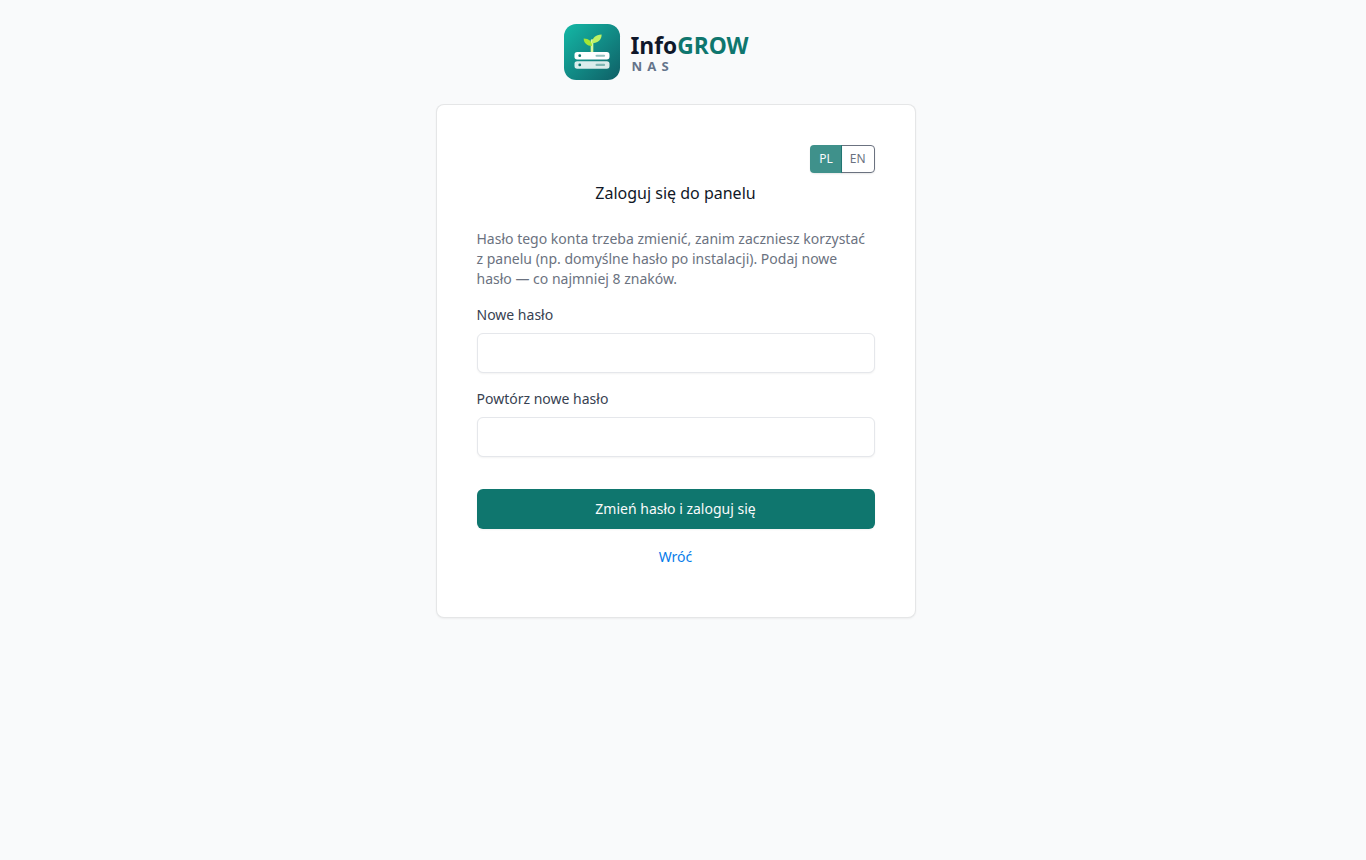
Wpisz admin i hasło admin.
Panel poprosi o nowe hasło: co najmniej 8 znaków, inne niż obecne i
inne niż nazwa konta. Wpisz je dwa razy i kliknij Zmień hasło i
zaloguj się.
Dopóki hasło nie zostanie zmienione, serwer nie wykona żadnego innego
polecenia z panelu.
Inne konta z dostępem do panelu. Do panelu logują
się tylko konta systemowe z grupy infogrow-admin. Konta FTP
i SMB zakładane w panelu nie mają do niego dostępu. Kolejnego
administratora dodasz w konsoli:
pw groupmod infogrow-admin -m jan
Przełącznik PL / EN nad formularzem zmienia język.
Po zalogowaniu panel zapamiętuje wybór przy koncie.
4. Układ panelu
Menu po lewej ma grupy: Przegląd, Magazyn,
Udostępnianie, Wirtualizacja i System. Na telefonie menu chowa się pod
przyciskiem ☰.
Nagłówek pokazuje zalogowane konto, przełącznik
języka, przycisk Zasilanie (rozdział 14) i
Wyloguj.
Zmiany, które mogą odciąć dostęp do serwera (zapora, przeniesienie
adresu karty na most), cofają się same po 120 s, jeśli
nie potwierdzisz ich w panelu.
Pulpit pokazuje bieżące obciążenie procesora i
pamięci (z pamięcią podręczną ZFS) oraz wykresy z ostatnich minut. Niżej
są stan i zajętość pul. Pula w stanie innym niż ONLINE jest oznaczona na
czerwono.
Alerty to historia zdarzeń. Serwer sam pilnuje
m.in.:
stanu pul ZFS (co minutę) i zajętości (80% i 90%);
wyników scrubu i testów S.M.A.R.T.;
replikacji, UPS-a, certyfikatów, DDNS i zapory.
Każde zdarzenie trafia na listę raz, przy zmianie stanu.
Powiadomienia mogą iść e-mailem (serwer SMTP z logowaniem) albo
webhookiem. Odbiorcy dostają je we własnym języku.
6. Magazyn: pule,
datasety, harmonogram
Pule
Tworzenie puli: wpisz nazwę, wybierz układ i
zaznacz wolne dyski, potem Utwórz pulę. Dostępne
układy:
stripe — bez redundancji;
mirror — kopia lustrzana;
RAID-Z1 — odporna na awarię 1 dysku;
RAID-Z2 — odporna na awarię 2 dysków.
Tabela dysków pokazuje stan każdego dysku:
systemowy, w użyciu (z nazwą puli)
albo wolny. Zająć można tylko dysk wolny. Dysk z
rozpoznanymi danymi (inny system plików, etykieta ZFS, GELI) jest
zablokowany z podaną przyczyną.
Scrub sprawdza wszystkie dane puli. Wynik
ostatniego scrubu widać pod stanem puli.
S.M.A.R.T. przy dysku pokazuje stan, czas pracy,
temperaturę i realokowane sektory. Dysk bez S.M.A.R.T. (np. wirtualny)
dostaje czytelny komunikat.
Datasety
Wybierz pulę z listy u góry. Przy każdym datasecie są przyciski:
Właściwości: m.in. kompresja, limity, punkt
montowania;
szybkie udostępnienie przez NFS;
usuwanie.
Usuwanie datasetu z zawartością. Gdy dataset ma
datasety podrzędne albo snapshoty (np. stary katalog jaili
iocage z FreeNAS-a), panel najpierw pokazuje pełną listę
tego, co zniknie, w kolejności usuwania, razem z liczbą datasetów i
snapshotów. Listę wylicza sam ZFS. Usunięcie wymaga wpisania nazwy.
Panel odmawia, gdy:
w drzewie jest wolumen WORM albo system;
to główny dataset puli (wtedy usuwa się całą pulę);
snapshot z drzewa ma klon poza nim (panel pokazuje, który).
Jeśli coś używa któregoś z datasetów (otwarte pliki, udział, jail),
nic nie jest usuwane.
Datasety typu volume (zvole) to dyski maszyn wirtualnych
i LUN-y iSCSI.
Harmonogram
Zadania cykliczne:
snapshoty datasetu z retencją (najstarsze ponad
wybraną liczbę są usuwane; ręcznych snapshotów zadanie nie rusza);
scrub puli (zalecany raz w miesiącu);
test S.M.A.R.T. dysku: krótki (kilka minut) albo
długi (wiele godzin).
Zadanie pominięte, bo serwer był wyłączony, wykona się po starcie.
Wyniki i błędy trafiają do „Alertów”.
7.
Przeniesienie dysków z TrueNAS (import puli)
Dyski z puli ZFS z TrueNAS (SCALE albo CORE) albo z innego serwera
ZFS przejmiesz razem z danymi:
Najlepiej wyeksportuj pulę w starym systemie: w TrueNAS
Storage → Export/Disconnect, bez niszczenia danych.
Jeśli się nie da (np. stary serwer nie działa), import też jest możliwy,
z potwierdzeniem.
Zapisz klucze datasetów zaszyfrowanych. W TrueNAS: Export
Key albo hasło. Panel InfoGROW nie ładuje jeszcze kluczy:
zaszyfrowane datasety zostaną niezamontowane.
Podłącz dyski do serwera InfoGROW NAS.
Na stronie Pule kliknij Szukaj pul na
dyskach. Wyszukiwanie tylko czyta etykiety dysków.
Każda wykryta pula ma kartę. Karta pokazuje:
stan puli i GUID;
informację, czy pula była wyeksportowana, albo jaki system jej
ostatnio używał;
układ: grupy dysków (dane, log, cache, spare, special) ze stanem
każdego dysku;
ostrzeżenia, np. o puli zdegradowanej, czyli z brakującym
dyskiem.
Zasady importu:
Pula systemowa TrueNAS (boot-pool,
freenas-boot) jest pokazana, ale jej import jest
zablokowany. Nie jest potrzebna do przeniesienia danych.
Pula z innego systemu bez eksportu wymaga
zaznaczenia potwierdzenia (jak zpool import -f). Zaznacz je
tylko wtedy, gdy stary system jest wyłączony.
Nazwa zajęta (np. obie pule nazywają się
tank): podaj nową nazwę.
Panel odmówi importu z podaniem powodu, gdy:
brakuje dysków potrzebnych do odczytu;
pula używa funkcji ZFS nieobsługiwanych przez ten system;
metadane puli są uszkodzone.
Kliknij Importuj. Po imporcie panel pokaże, które
datasety zamontował i gdzie, a które nie i dlaczego. Dataset z punktem
montowania w katalogu systemowym (np. /usr/...), na
/ albo w miejscu już zamontowanego systemu plików zostaje
niezamontowany i dostaje canmount=noauto. Dzięki temu nie
przykryje plików systemu ani po imporcie, ani po restarcie. Taki dataset
popraw na stronie Datasety: zmień właściwość
mountpoint i zamontuj go.
Zaimportowana pula wraca sama po restarcie. Konfiguracji udziałów z
TrueNAS (SMB, NFS, iSCSI) panel nie przenosi: załóż udziały na nowo na
wskazanych datasetach.
8. Kopie
zapasowe: replikacja i odbiór kopii
Replikacja kopiuje dataset na drugi serwer z ZFS
(zfs send/receive przez SSH). Kolejne przebiegi przesyłają
tylko zmiany. Są dwa kierunki:
Push: ten NAS wysyła kopie na serwer kopii.
Pull: serwer kopii sam pobiera dane własnym
kluczem. Włamanie na NAS nie daje wtedy dostępu do kopii.
Do tego ustawiasz liczbę kopii przechowywanych na serwerze kopii i
limit przepustowości łącza. Kopia na serwerze docelowym jest tylko do
odczytu i się nie montuje.
Odbiór kopii ustawia ten NAS jako serwer kopii dla
innego NAS-a. Wskazujesz dataset na kopie i ich retencję; nadawca nie
może jej zmienić.
9. Archiwum WORM (RODO)
Wolumen WORM (write once, read many) przechowuje
dokumenty, których nie wolno zmienić ani usunąć przed końcem okresu
przechowywania, np. faktury, umowy albo nagrania monitoringu. Po tym
okresie panel sam je usuwa, tak jak wymaga RODO (art. 5 ust. 1 lit.
e).
Budowa wolumenu
Polityka: okres (miesiąc albo rok), okres
przechowywania, podstawa prawna i działanie po terminie (usuń
automatycznie albo zgłoś do decyzji). Polityki nie da się złagodzić:
przechowywanie można tylko wydłużyć (dotyczy nowych okresów).
Osoby albo systemy (np. klient-0042,
system-erp). Każda ma własny klucz szyfrowania. Używaj
pseudonimów: nazwa zostaje w dzienniku także po usunięciu danych.
Okresy: każda osoba ma foldery okresów
(2026 albo 2026-10). Pliki zapisuje się w
folderze bieżącego okresu. Następny okres panel zakłada z
wyprzedzeniem.
Zatwierdzanie, czyli plik staje się niezmienny:
po czasie bezczynności (domyślnie 30 minut bez zmian);
od razu po nadaniu atrybutu „Tylko do odczytu” (Windows: Właściwości
pliku) albo zdjęciu prawa zapisu;
przyciskiem Zatwierdź teraz dla osoby albo całego
wolumenu, wygodnym po wgraniu wielu plików naraz.
Zatwierdzonego pliku nie da się zmienić, przemianować ani usunąć,
także z konta administratora ani z Windows („Odmowa dostępu”). Jego suma
SHA-256 trafia do manifestu okresu.
Koniec okresu i przechowywania. Dobę po końcu okresu
panel go pieczętuje: zatwierdza resztę plików, blokuje zapis i robi
chroniony snapshot. Po końcu okresu i okresu przechowywania cały okres
jest usuwany albo zgłaszany do decyzji (przycisk Usuń okresy po
terminie). Dane mogą więc istnieć najwyżej o jeden okres dłużej
niż wynosi przechowywanie. Okres roczny pasuje do przepisów liczonych
„od końca roku”.
Blokada prawna wstrzymuje usuwanie danych osoby, np.
na czas sporu.
Usuń kryptograficznie, np. po żądaniu z art. 17
RODO, gdy nie ma obowiązku przechowywania: panel niszczy klucz osoby i
usuwa jej dane. Kopie na serwerach kopii stają się nieczytelne. Trzeba
wpisać nazwę osoby i podać podstawę. Przy blokadzie prawnej przycisk
jest niedostępny.
Dziennik (rejestr czynności, art. 30 RODO) zapisuje,
kto i kiedy co zrobił. Łańcuch sum kontrolnych pokazuje, czy ktoś
zmieniał dziennik poza panelem. Sprawdź integralność
porównuje sumy SHA-256 wszystkich plików z manifestami. Niezgodność to
alert krytyczny.
Utworzenie wolumenu
Na stronie Samba (SMB) załóż grupę z użytkownikami,
którzy mają zapisywać pliki. W systemie nazywa się
smbg-<nazwa>.
Na stronie WORM (archiwum) wybierz dataset
nadrzędny, nazwę, grupę, okres, okres przechowywania, podstawę prawną i
działanie po terminie.
Dodaj osoby albo systemy.
Kliknij Udostępnij przez SMB. Udział obejmuje cały
wolumen.
Kopia na drugi serwer. Zadanie replikacji (rozdział
8), którego źródłem jest wolumen WORM, kopiuje każdy okres w postaci
zaszyfrowanej: serwer kopii nie ma kluczy. Otwarty okres jest kopiowany
codziennie, a zapieczętowany dostaje na kopii blokadę do końca
przechowywania. Serwerem kopii musi być drugi InfoGROW NAS. Na jego
stronie Odbiór kopii zaznacz Kopia
WORM i podaj politykę kopii, co najmniej taką jak na źródle.
Serwer kopii sam liczy terminy i usuwa okresy po terminie. Ma też własną
blokadę prawną.
Klucze. Klucze osób są na tym NAS-ie. W sekcji
Klucze szyfrowania osób utwórz plik kluczy (szyfrowany
hasłem) i przechowuj go poza serwerem. Bez niego awaria NAS-a oznacza
utratę archiwum, także kopii. Klucze nie trafiają do eksportu
konfiguracji. Po kryptograficznym usunięciu osoby zniszcz wcześniejsze
pliki kluczy i zrób nowy.
Zegar. Gdy zegar serwera przesunie się o ponad dobę,
usuwanie po terminie jest wstrzymane, żeby przestawienie daty nie
skasowało danych. Sprawdź datę i kliknij Zegar jest poprawny —
wznów usuwanie.
Granice ochrony. Ochronę może obejść root na konsoli
serwera (zdjęcie blokad plików, usunięcie datasetu). Sprawdzenie
integralności to wykryje. Odporność na przejęcie serwera daje dopiero
kopia na serwer kopii, do którego administrator NAS-a nie ma dostępu.
Politykę przechowywania i podstawy prawne powinien zatwierdzić inspektor
ochrony danych.
10. Udostępnianie:
Samba, NFS, iSCSI, FTP
Samba (SMB)
— udziały dla Windows, macOS i Linuksa
W Ustawieniach serwera wybierz tryb pracy:
samodzielny serwer;
członek domeny Active Directory (dołączenie do domeny i uprawnienia
Windows na udziałach).
Ustaw nazwę serwera i grupę roboczą i zapisz.
Dodaj użytkowników SMB i ewentualnie grupy.
Utwórz udziały na datasetach i wskaż grupę z
dostępem.
Adresy udziałów: w Windows
\\<adres-serwera>\<udział>, w macOS i Linuksie
smb://<adres-serwera>/<udział>. Gdy nazwa
serwera nie rozwiązuje się na adres, panel pokaże ostrzeżenie z
przyciskiem naprawy.
NFS
Eksport to ścieżka datasetu i opcjonalne opcje
exports(5). Przykład:
-maproot=root -network 192.168.1.0/24. Bez opcji eksport
jest otwarty dla każdego w sieci. Usługę włączasz przyciskiem
Włącz u góry.
iSCSI
Target iSCSI udostępnia zvol jako dysk sieciowy, np. dla Windows albo
rejestratora kamer. Zalecane jest:
ograniczenie dostępu do listy inicjatorów;
włączenie CHAP: nazwa i sekret, 12–16 znaków;
opcjonalnie CHAP wzajemny.
FTP
Każde konto FTP jest zamknięte w swoim katalogu (chroot) i nie widzi
innych kont. Pliki zapisuje w podkatalogu upload. FTP
przesyła hasła bez szyfrowania, więc używaj go tylko w sieci
lokalnej.
Jail to lekki, odizolowany FreeBSD na tym samym serwerze. Przy
zakładaniu podajesz:
nazwę i dataset jaila;
tryb sieci: alias IP na karcie hosta (najprostszy), VNET (własny
interfejs na moście, pełna izolacja) albo stos sieciowy dzielony z
hostem;
źródło systemu bazowego: pobranie base.txz z
weryfikacją sumy, lokalne archiwum albo klon szablonu.
Do jaila podłączysz katalogi hosta (np. z multimediami). Jail z
autostartem uruchamia się sam po restarcie serwera.
Aplikacje
Gotowe usługi instalowane w nowym jailu:
Jellyfin, Plex Media Server,
Navidrome, MiniDLNA — multimedia;
motion — nagrywanie z kamer IP.
Każda karta podaje porty i potrzebne miejsce. Jail aplikacji musi
mieć dostęp do internetu, bo pobiera pakiety.
Maszyny wirtualne (bhyve)
Przy tworzeniu maszyny podajesz:
nazwę i system gościa: FreeBSD/Linux albo Windows (Windows dostaje
dysk NVMe i kartę e1000, bo instalator nie ma sterowników virtio);
procesory, pamięć i rozmiar dysku;
dataset na dyski maszyn;
sieć: most albo NAT;
obraz ISO instalatora (można go też pobrać z adresu URL).
Przyciski przy maszynie:
Konsola: ekran maszyny w przeglądarce;
Zatrzymaj: zamknięcie przez ACPI, jak krótkie
naciśnięcie przycisku zasilania;
Wyłącz natychmiast;
Zmień: np. odłączenie ISO albo autostart.
Węzły
— przenoszenie maszyn i jaili między serwerami
Węzeł to inny serwer InfoGROW NAS. Parowanie przebiega tak:
Na serwerze docelowym, w sekcji „Węzły przyjmowane”, wklej klucz
tego NAS-a.
Tam też wskaż datasety na przyjmowane maszyny, jaile i kopie.
Tutaj, w sekcji „Węzły docelowe”, dodaj tamten serwer po
adresie.
Zatrzymaną maszynę albo jail przeniesiesz potem przyciskiem
Przenieś… na stronie „Maszyny” albo „Jaile”. Przerwane
przesyłanie wznawia się od miejsca przerwania.
12. System
UPS
Monitorowanie zasilacza awaryjnego (USB, np. APC Smart-UPS /
Back-UPS). Serwer wyłączy się, gdy UPS zgłosi niski stan baterii albo
gdy na zasilaniu bateryjnym poziom spadnie poniżej wybranego progu.
Opcjonalnie po wyłączeniu serwera wyłączy też UPS, żeby po powrocie
zasilania serwer wystartował sam, jeśli BIOS ma włączone uruchamianie po
powrocie zasilania.
Konfiguracja — kopia
ustawień panelu
Eksport tworzy plik ze wszystkimi ustawieniami
usług. Plik obejmuje m.in.:
Sambę z kontami i udziałami, FTP, iSCSI i NFS;
jaile i harmonogram;
alerty, UPS i replikację.
Plik zawiera hasła, więc jest szyfrowany Twoim hasłem (co najmniej 12
znaków). Danych z pul nie zawiera: pule przenosi się z dyskami (rozdział
7). Zawiera polityki wolumenów WORM, ale nie klucze osób: plik kluczy
robi się osobno na stronie WORM (rozdział 9).
Import najpierw sprawdza plik i pokazuje, czego
brakuje, np. datasetów. Gdy pula na nowym serwerze nazywa się inaczej,
podasz nową nazwę.
Sieć
Interfejsy: podgląd wszystkich kart, mostów,
VLAN-ów i VPN, z adresami i ruchem.
Mosty sieciowe łączą maszyny i jaile z siecią:
most z kartą LAN daje gościom adresy w sieci lokalnej;
most bez karty jest izolowany (opcjonalnie z serwerem DHCP i NAT do
internetu). Przeniesienie adresu karty na most trzeba potwierdzić w
ciągu 120 s, inaczej zmiana się cofa.
VLAN-y na kartach sieciowych.
Firewall
Przy każdej usłudze (panel, SSH, Samba, NFS, iSCSI, FTP) wybierasz,
skąd wolno się łączyć: „Sieć domowa i VPN”, „Tylko VPN”, „Z każdego
adresu” (ma znaczenie tylko przy przekierowaniu portu na routerze) albo
„Nikt”. Każda zmiana działa od razu, ale cofa się sama po 120 s,
jeśli jej nie potwierdzisz. Pomyłka nie odetnie więc dostępu na
stałe. Dodatkowo są:
ochrona SSH przed zgadywaniem haseł (10 połączeń w 30 s → blokada na
dobę);
lista zablokowanych adresów;
dziennik zablokowanych połączeń.
VPN (WireGuard)
Bezpieczny dostęp do NAS-a spoza domu bez wystawiania panelu do
internetu:
Włącz serwer VPN i podaj adres publiczny, np. z DDNS.
Na routerze przekieruj port UDP na NAS.
Dodaj klientów.
Konfiguracja klienta (kod QR dla telefonu i plik .conf)
jest pokazywana tylko raz. Zasięg ustawiasz osobno: sam NAS albo cała
sieć domowa.
DDNS
DDNS daje stałą nazwę dla zmiennego adresu IP od operatora, np. jako
adres publiczny VPN. Obsługiwani dostawcy:
DuckDNS;
No-IP i inni zgodni z dyndns2 (np. Dynu);
Cloudflare (token API z uprawnieniem do edycji DNS strefy).
Serwer co 5 minut sprawdza swój publiczny adres i aktualizuje nazwę,
gdy adres się zmieni. Uwaga: przy adresie za NAT-em operatora (CGNAT)
nazwa wskaże operatora, a przekierowanie portu nie zadziała.
HTTPS
Strona pokazuje aktywny certyfikat panelu (nazwy, ważność, odcisk
SHA-256). Możliwości:
Let's Encrypt: darmowy, zaufany certyfikat dla
domeny NAS-a, odnawiany automatycznie, weryfikowany przez DNS (DDNS)
albo HTTP;
wgranie własnego certyfikatu;
powrót do własnego certyfikatu serwera.
13. Konto: hasło
i logowanie dwuskładnikowe
Zmiana hasła: podaj obecne hasło i dwa razy
nowe. To hasło systemowe konta.
Logowanie dwuskładnikowe (TOTP): przebiega
tak:
Kliknij Włącz i zeskanuj kod QR aplikacją (Google
Authenticator, Microsoft Authenticator, Aegis, FreeOTP).
Potwierdź włączenie pierwszym kodem.
Zapisz kody zapasowe — są pokazywane tylko
raz.
Logowanie wymaga potem hasła i 6-cyfrowego kodu, albo jednego z kodów
zapasowych.
14. Restart i wyłączenie
serwera
Przycisk Zasilanie w nagłówku otwiera okno z wyborem
Uruchom ponownie albo Wyłącz. Okno
pokazuje działające maszyny wirtualne. Po wyborze:
Działające maszyny dostają polecenie zamknięcia (ACPI), a panel
czeka na nie do 3 minut.
System zamyka usługi; jaile zatrzymuje sam.
Serwer uruchamia się ponownie albo wyłącza.
Maszyna, która nie zamknie się w 3 minuty, zostanie zatrzymana
twardo, jak przy odłączeniu zasilania. Windows Server domyślnie ignoruje
polecenie zamknięcia, gdy nikt nie jest zalogowany. Włącz w nim zasadę
„Zamknięcie: zezwalaj na zamykanie systemu bez konieczności logowania”
(Shutdown: Allow system to be shut down without having to log
on) albo zamknij go sam przed restartem serwera.
Maszyny i jaile z autostartem wracają po restarcie. Po wyłączeniu
serwer włączysz przyciskiem zasilania (albo zdalnie: IPMI,
Wake-on-LAN).
15. Aktualizacja i
odinstalowanie
Aktualizacja: zainstaluj nowszą paczkę
(pkg install ./infogrow-nas-<nowa>.pkg). Usługi
uruchomią się ponownie same w ciągu minuty, a ustawienia i konta
zostają.
InfoGROW NAS is a web panel for running a file server on FreeBSD with
ZFS. It covers ZFS pools and datasets, file sharing (SMB, NFS, iSCSI,
FTP), backups (snapshots, replication), jails, ready-made apps, bhyve
virtual machines, networking, the firewall, VPN and certificates. The
panel is available in English and Polish and works on phones too.
1. Requirements
An amd64 computer or virtual machine with FreeBSD
15.1-RELEASE installed on ZFS (pool zroot).
At least one additional disk for data. The system disk is locked in
the panel: you cannot create a pool on it.
Memory: 4 GB or more; more for virtual machines and many apps.
For virtual machines: a CPU with hardware virtualization (Intel VT-x
or AMD-V).
Internet access during installation (packages from the FreeBSD
repository).
The package is built for a specific FreeBSD version. After upgrading
the system to a new version (e.g. 15.1 → 15.2), install the InfoGROW NAS
package built for that version.
2. Installation
As root on the server:
pkg install ./infogrow-nas-0.1.0.<date>.pkg # pkg fetches dependencies from the repositorysysrc infogrow_worker_enable=YES infogrow_ui_enable=YESservice infogrow_worker startservice infogrow_ui start
The installation creates:
the service account infogrow (the web panel runs under
it);
the group infogrow-admin: only its
members can sign in to the panel;
the account admin with password
admin, which must be changed at the first
sign-in.
The panel is at
https://<server-address>:8443/. The
old address http://<server-address>:8080/ only
redirects to HTTPS.
On the first visit the browser warns about the certificate. This is
the server's own certificate: compare its SHA-256 fingerprint with the
one on the "HTTPS" page and accept it. You can set up a trusted
certificate (Let's Encrypt or your own) later, see chapter 12.
3. First sign-in
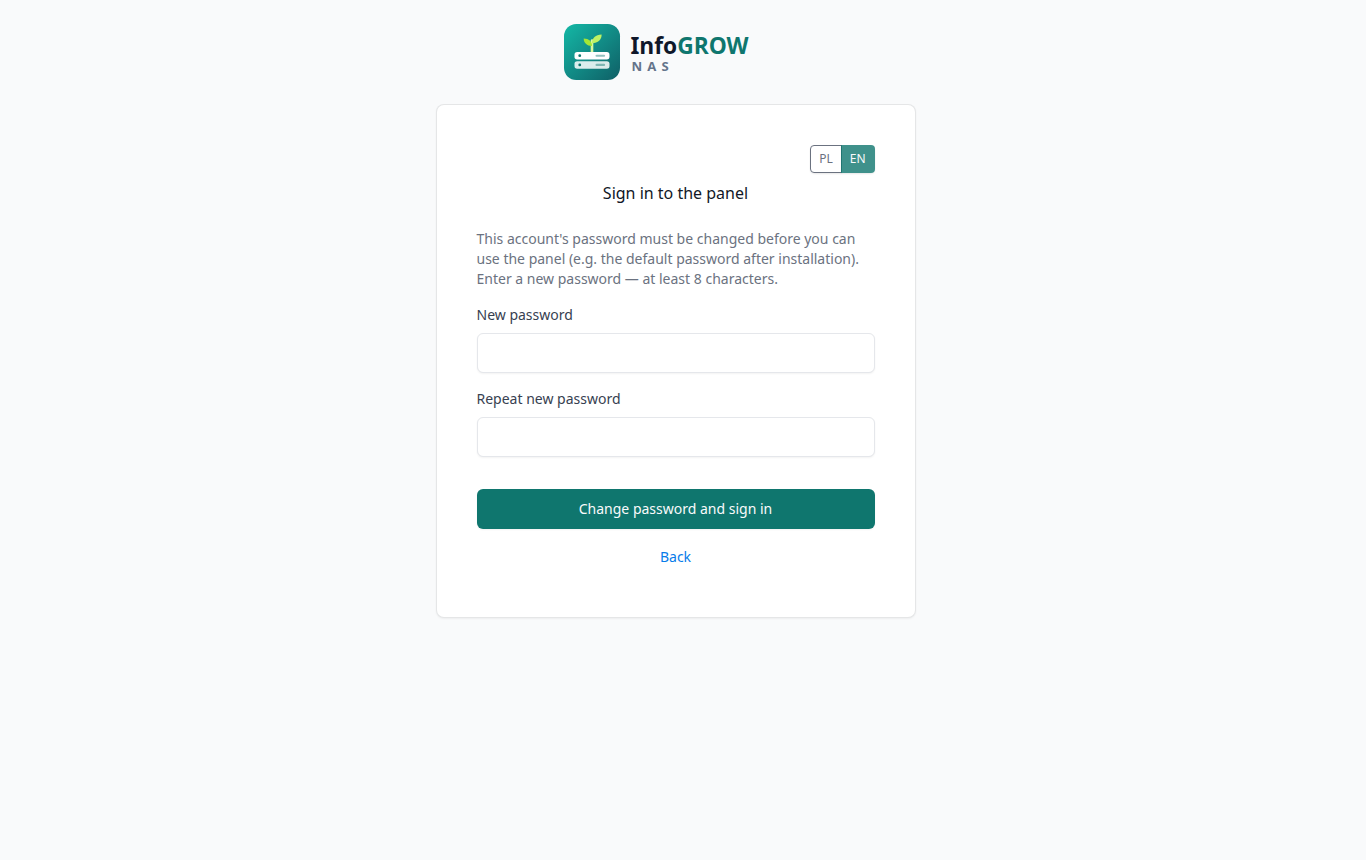
Enter admin and the password admin.
The panel asks for a new password: at least 8 characters, different
from the current one and from the account name. Enter it twice and click
Change password and sign in.
Until the password is changed, the server will not carry out any
other command from the panel.
Other accounts with panel access. Only system
accounts in the infogrow-admin group can sign in to the
panel. FTP and SMB accounts created in the panel have no access to it.
Add another administrator in the console:
pw groupmod infogrow-admin -m john
The PL / EN switch above the form changes the
language. After sign-in the panel remembers the choice for the
account.
4. Panel layout
The menu on the left has the groups Overview,
Storage, Sharing, Virtualization and System. On a phone the menu hides
behind the ☰ button.
The header shows the signed-in account, the
language switch, the Power button (chapter 14) and
Sign out.
Changes that could cut off access to the server (firewall, moving a
network card's address to a bridge) revert by themselves after
120 s unless you confirm them in the panel.
Irreversible operations (deleting a pool, dataset or machine)
require typing the name of the object being deleted.
5. Dashboard and alerts
The Dashboard shows current CPU and memory usage
(including the ZFS cache) and charts of the last few minutes. Below are
the state and usage of the pools. A pool in any state other than ONLINE
is marked red.
Alerts is the event history. Among other things, the
server watches:
the state of ZFS pools (every minute) and their usage (80% and
90%);
scrub and S.M.A.R.T. test results;
replication, the UPS, certificates, DDNS and the firewall.
Each event is listed once, when the state changes. Notifications can
be sent by e-mail (an SMTP server with authentication) or by webhook.
Recipients get them in their own language.
6. Storage: pools,
datasets, schedule
Pools
Creating a pool: enter a name, choose a layout and
tick free disks, then click Create pool. Available
layouts:
stripe — no redundancy;
mirror — a mirrored copy;
RAID-Z1 — survives the failure of 1 disk;
RAID-Z2 — survives the failure of 2 disks.
The disk table shows the state of each disk: system
disk, in use (with the pool name) or
free. Only a free disk can be used. A disk with
recognized data (another file system, a ZFS label, GELI) is locked, with
the reason shown.
Scrub checks all data in the pool. The result of
the last scrub is shown under the pool state.
S.M.A.R.T. next to a disk shows its health,
power-on hours, temperature and reallocated sectors. A disk without
S.M.A.R.T. (e.g. a virtual one) gets a clear message.
Datasets
Choose a pool from the list at the top. Each dataset has buttons
for:
Properties: compression, quotas, mount point and
more;
quick sharing over NFS;
deleting.
Deleting a dataset with its contents. When a dataset
has child datasets or snapshots (for example an old iocage
jail directory from FreeNAS), the panel first shows the full list of
what will be removed, in deletion order, with the number of datasets and
snapshots. ZFS itself works out the list. Deletion requires typing the
name. The panel refuses when:
the tree contains a WORM volume or the system;
it is the pool's root dataset (delete the whole pool instead);
a snapshot in the tree has a clone outside it (the panel shows which
one).
If something is using any of the datasets (open files, a share, a
jail), nothing is deleted.
Datasets of type volume (zvols) are virtual machine
disks and iSCSI LUNs.
Schedule
Recurring tasks:
snapshots of a dataset with retention (the oldest
ones beyond the chosen number are deleted; the task never touches manual
snapshots);
scrub of a pool (once a month is recommended);
S.M.A.R.T. test of a disk: short (a few minutes) or
long (many hours).
A task missed because the server was off runs after start-up. Results
and errors go to "Alerts".
7. Moving disks
from TrueNAS (pool import)
You can take over the disks of a ZFS pool from TrueNAS (SCALE or
CORE) or another ZFS server, together with the data:
Ideally, export the pool on the old system: in TrueNAS
Storage → Export/Disconnect, without destroying data.
If that is not possible (e.g. the old server is dead), import still
works, with a confirmation.
Save the keys of encrypted datasets. In TrueNAS: Export
Key or the passphrase. The InfoGROW panel does not load keys
yet: encrypted datasets stay unmounted.
Connect the disks to the InfoGROW NAS server.
On the Pools page click Search disks for
pools. The search only reads disk labels.
Each pool found gets a card. The card shows:
the pool state and GUID;
whether the pool was exported, or which system last used it;
the layout: disk groups (data, log, cache, spare, special) with the
state of each disk;
warnings, e.g. about a degraded pool, i.e. one with a missing
disk.
Import rules:
The TrueNAS system pool (boot-pool,
freenas-boot) is shown, but its import is blocked.
It is not needed to move the data.
A pool from another system that was not exported
requires ticking a confirmation (like zpool import -f).
Tick it only when the old system is switched off.
Name already taken (e.g. both pools are called
tank): enter a new name.
The panel refuses the import and gives the reason when:
disks needed to read the pool are missing;
the pool uses ZFS features this system does not support;
the pool metadata is damaged.
Click Import. After the import the panel shows which
datasets it mounted and where, and which it did not and why. A dataset
with its mount point in a system directory (e.g. /usr/...),
on /, or on top of an already mounted file system stays
unmounted and gets canmount=noauto. That way it cannot hide
system files, neither after the import nor after a restart. Fix such a
dataset on the Datasets page: change its
mountpoint property and mount it.
An imported pool comes back by itself after a restart. The panel does
not carry over the TrueNAS share configuration (SMB, NFS, iSCSI): create
the shares again on the datasets shown.
8. Backups:
replication and incoming backups
Replication copies a dataset to another server with
ZFS (zfs send/receive over SSH). Later runs send only the
changes. There are two directions:
Push: this NAS sends copies to the backup
server.
Pull: the backup server fetches the data itself
with its own key. A break-in on the NAS then gives no access to the
copies.
You also set how many copies the backup server keeps and a bandwidth
limit. The copy on the target server is read-only and is not
mounted.
Incoming backups makes this NAS a backup server for
another NAS. You choose a dataset for the copies and their retention;
the sender cannot change it.
9. WORM archive (GDPR)
A WORM volume (write once, read many) keeps
documents that must not be changed or deleted before their retention
ends, e.g. invoices, contracts or CCTV recordings. When retention ends,
the panel deletes them by itself, as GDPR requires (Art. 5(1)(e)).
How a volume is built
Policy: period (month or year), retention, legal
basis and what happens when retention ends (delete automatically or
report for a decision). The policy cannot be relaxed: retention can only
be extended (it applies to new periods).
Subjects or systems (e.g. client-0042,
erp-system). Each has its own encryption key. Use
pseudonyms: the name stays in the log even after the data is
deleted.
Periods: each subject has period folders
(2026 or 2026-10). Files are saved in the
current period's folder. The panel creates the next period in
advance.
Committing makes a file immutable:
after an idle time (30 minutes without changes by default);
at once when it is marked "Read-only" (Windows: file Properties) or
loses write permission;
with Commit now for a subject or the whole volume,
handy after uploading many files at once.
A committed file cannot be changed, renamed or deleted, not even by
the administrator or from Windows ("Access denied"). Its SHA-256 goes
into the period's manifest.
End of a period and of retention. A day after a
period ends, the panel seals it: it commits the remaining files, blocks
writing and takes a protected snapshot. After the period end plus
retention, the whole period is deleted or reported for a decision
(Delete expired periods button). So data may exist at
most one period longer than the retention. A yearly period matches rules
counted "from the end of the year".
Legal hold stops deleting a subject's data, e.g.
during a dispute.
Erase cryptographically, e.g. after a GDPR Art. 17
request when there is no obligation to keep the data: the panel destroys
the subject's key and deletes its data. Copies on backup servers become
unreadable. You type the subject's name and give the basis. Under legal
hold the button is unavailable.
The log (record of processing, GDPR Art. 30) records
who did what and when. A chain of checksums shows whether anyone changed
the log outside the panel. Check integrity compares the
SHA-256 of every file with the manifests. A difference raises a critical
alert.
Creating a volume
On the Samba (SMB) page, create a group with the
users who will save files. In the system it is named
smbg-<name>.
On the WORM (archive) page, choose the parent
dataset, name, group, period, retention, legal basis and what happens
when retention ends.
Add subjects or systems.
Click Share over SMB. The share covers the whole
volume.
A copy on a second server. A replication task
(chapter 8) whose source is a WORM volume copies each period encrypted:
the backup server has no keys. An open period is copied daily, and a
sealed one gets a hold on the copy until retention ends. The backup
server must be another InfoGROW NAS. On its Incoming
backups page, tick WORM copy and enter the
copy's policy, at least the same as on the source. The backup server
computes the dates and deletes expired periods by itself. It also has
its own legal hold.
Keys. Subjects' keys are on this NAS. In the
Subjects' encryption keys section, create a key file
(passphrase-encrypted) and keep it outside the server. Without it, a NAS
failure means losing the archive, including the copies. Keys are not
part of the configuration export. After a subject's cryptographic
erasure, destroy earlier key files and make a new one.
Clock. When the server clock moves by more than a
day, deleting after retention is suspended, so that changing the date
cannot erase data. Check the date and click The clock is correct
— resume deleting.
Limits of the protection. Root on the server console
can bypass the protection (removing file locks, deleting the dataset).
The integrity check detects it. Resistance to a taken-over server
requires a copy on a backup server that the NAS administrator cannot
access. Your data protection officer should approve the retention policy
and legal bases.
10. Sharing: Samba, NFS,
iSCSI, FTP
Samba (SMB)
— shares for Windows, macOS and Linux
In Server settings choose the mode:
standalone server;
Active Directory domain member (joining the domain, Windows
permissions on shares).
Set the server name and workgroup and save.
Add SMB users and, if needed, groups.
Create shares on datasets and choose the group with
access.
Share addresses: in Windows
\\<server-address>\<share>, in macOS and Linux
smb://<server-address>/<share>. When the server
name does not resolve to an address, the panel shows a warning with a
fix button.
NFS
An export is a dataset path plus optional exports(5)
options, for example:
-maproot=root -network 192.168.1.0/24. Without options the
export is open to everyone on the network. Turn the service on with the
Enable button at the top.
iSCSI
An iSCSI target shares a zvol as a network disk, e.g. for Windows or
a camera recorder. Recommended:
limit access to a list of initiators;
turn on CHAP: a name and a secret of 12–16 characters;
optionally, mutual CHAP.
FTP
Each FTP account is confined to its own directory (chroot) and cannot
see other accounts. Files are written to the upload
subdirectory. FTP sends passwords unencrypted, so use it only on the
local network.
11.
Virtualization: jails, apps, machines, nodes
Jails
A jail is a lightweight, isolated FreeBSD on the same server. When
creating one you choose:
the jail name and dataset;
the network mode: an IP alias on the host's card (the simplest),
VNET (its own interface on a bridge, full isolation), or the network
stack shared with the host;
the source of the base system: downloading base.txz
with checksum verification, a local archive, or a clone of a
template.
You can attach host directories to a jail (e.g. with media). A jail
with autostart starts by itself after a server restart.
Apps
Ready-made services installed in a new jail:
Jellyfin, Plex Media Server,
Navidrome, MiniDLNA — media;
motion — recording from IP cameras.
Each card lists the ports and the space needed. The app's jail needs
internet access to download packages.
Virtual machines (bhyve)
When creating a machine you choose:
the name and guest system: FreeBSD/Linux or Windows (Windows gets an
NVMe disk and an e1000 card, because its installer has no virtio
drivers);
CPUs, memory and disk size;
the dataset for machine disks;
the network: a bridge or NAT;
the installer ISO image (it can also be downloaded from a URL).
Buttons next to a machine:
Console: the machine's screen in the browser;
Stop: shutdown via ACPI, like a short press of the
power button;
Power off now;
Change: e.g. detaching the ISO or setting
autostart.
Nodes —
moving machines and jails between servers
A node is another InfoGROW NAS server. Pairing works like this:
On the target server, in the "Accepted nodes" section, paste this
NAS's key.
There, also choose the datasets for incoming machines, jails and
backups.
Here, in the "Target nodes" section, add that server by its
address.
You can then move a stopped machine or jail with the
Move… button on the "Virtual machines" or "Jails" page.
An interrupted transfer resumes where it stopped.
12. System
UPS
Monitoring of an uninterruptible power supply (USB, e.g. APC
Smart-UPS / Back-UPS). The server shuts down when the UPS reports a low
battery, or when on battery power the charge falls below a chosen
threshold. Optionally, after shutting the server down it also turns the
UPS off, so that when power returns the server starts by itself,
provided the BIOS has power-on after power loss enabled.
Configuration
— backup of the panel settings
Export creates a file with all service settings.
Among other things, the file includes:
Samba with its accounts and shares, FTP, iSCSI and NFS;
jails and the schedule;
alerts, the UPS and replication.
The file contains passwords, so it is encrypted with your passphrase
(at least 12 characters). It does not contain pool data: pools move with
their disks (chapter 7). It contains WORM volume policies but not the
subjects' keys: the key file is made separately on the WORM page
(chapter 9).
Import first checks the file and shows what is
missing, e.g. datasets. When the pool on the new server has a different
name, you enter the new name.
Network
Interfaces: an overview of all cards, bridges,
VLANs and VPN, with addresses and traffic.
Network bridges connect machines and jails to the
network:
a bridge with a LAN card gives guests addresses on the local
network;
a bridge without a card is isolated (optionally with a DHCP server
and NAT to the internet). Moving a card's address to a bridge must be
confirmed within 120 s, otherwise the change reverts.
VLANs on network cards.
Firewall
For each service (panel, SSH, Samba, NFS, iSCSI, FTP) you choose
where connections may come from: "Home network and VPN", "VPN only",
"From any address" (only matters with port forwarding on the router) or
"Nobody (blocked)". Each change takes effect immediately, but
reverts by itself after 120 s unless you confirm it. A mistake
therefore cannot lock you out for good. In addition there are:
SSH protection against password guessing (10 connections in 30 s →
blocked for a day);
a list of blocked addresses;
a log of blocked connections.
VPN (WireGuard)
Secure access to the NAS from outside your home without exposing the
panel to the internet:
Enable the VPN server and enter the public address, e.g. from
DDNS.
Forward the UDP port to the NAS on your router.
Add clients.
The client configuration (a QR code for a phone and a
.conf file) is shown only once. The reach is set
separately: the NAS only, or the whole home network.
DDNS
DDNS gives a fixed name to the changing IP address from your
provider, e.g. as the public address of the VPN. Supported
providers:
DuckDNS;
No-IP and others compatible with dyndns2 (e.g. Dynu);
Cloudflare (an API token with permission to edit the zone's
DNS).
Every 5 minutes the server checks its public address and updates the
name when the address changes. Note: behind your provider's NAT (CGNAT)
the name points to the provider, and port forwarding will not work.
HTTPS
The page shows the panel's active certificate (names, validity,
SHA-256 fingerprint). Options:
Let's Encrypt: a free, trusted certificate for the
NAS's domain, renewed automatically, verified via DNS (DDNS) or
HTTP;
uploading your own certificate;
going back to the server's own certificate.
13.
Account: password and two-factor authentication
Change password: enter the current password and
the new one twice. This is the account's system password.
Two-factor authentication (TOTP) works like
this:
Click Enable and scan the QR code with an app
(Google Authenticator, Microsoft Authenticator, Aegis, FreeOTP).
Confirm with the first code.
Save the backup codes — they are shown only
once.
Signing in then requires the password and a 6-digit code, or one of
the backup codes.
14. Restarting
and shutting down the server
The Power button in the header opens a window with
the choice Restart or Shut down. The
window lists the running virtual machines. After you choose:
Running machines get a shutdown command (ACPI), and the panel waits
up to 3 minutes for them.
The system stops services; it stops jails by itself.
The server restarts or powers off.
A machine that does not shut down within 3 minutes is stopped hard,
as if its power were cut. By default, Windows Server ignores the
shutdown command when nobody is signed in. Enable the policy
Shutdown: Allow system to be shut down without having to log on
in it, or shut it down yourself before restarting the server.
Machines and jails with autostart come back after a restart. After a
shutdown, turn the server on with its power button (or remotely: IPMI,
Wake-on-LAN).
15. Updating and
uninstalling
Updating: install the newer package
(pkg install ./infogrow-nas-<new>.pkg). The services
restart by themselves within a minute; settings and accounts are
kept.
Uninstalling: pkg delete infogrow-nas
stops the services and removes the program. Deliberately kept:
the data on the pools;
the infogrow and admin accounts, FTP
accounts;
settings in /var/db/infogrow-nas;
logs in /var/log/infogrow-nas;
the share configuration.
16. Troubleshooting
Problem
Solution
Forgotten panel password
In the server console as root:
passwd admin (or the name of another account in the
infogrow-admin group).
Lost phone with the 2FA app and no backup codes
In the console as root:
infogrow-worker --reset-2fa ACCOUNT.
"Incorrect username or password." although the password is
right
The account is not in the infogrow-admin group:
pw groupmod infogrow-admin -m ACCOUNT.
"Too many failed sign-in attempts"
After a few wrong passwords the address is blocked for a few
minutes. Wait.
No access to the panel after changing the firewall or network
Wait 120 s: an unconfirmed change reverts by itself.
The browser warns about the certificate
Compare the SHA-256 fingerprint with the "HTTPS" page, or set up
Let's Encrypt.
Imported pool: dataset unmounted because of a conflict
"Datasets" page → Properties → change
mountpoint, then mount it.
Encrypted dataset unmounted after import
Load the key in the console:
zfs load-key <dataset>, then
zfs mount <dataset>.
Saving a file in a WORM folder: "Access denied"
The file is committed (immutable) — this is intended. A new version
is a new file.
WORM page: "Deleting after retention is suspended"
The server clock moved by more than a day. Check the date and
confirm on the WORM page.